
 United States
SuperNova Enterprise 25.03
Released:
Languages supported: Arabic, Arabic (France), Belgian (Dutch), Belgian (French), Chinese (English), Czech, Danish, Dutch, English (Australia), English (Canada), English (South African), English (United Kingdom), English (United States), Finnish, French, French (Canada), German, Greek (English), Italian, Norwegian, Polish, Portuguese, Portuguese (Brazilian), Slovak, Spanish, Swedish, Swedish (Arabic), Swiss German, Welsh
Please note: The features and improvements listed on this web page are available in SuperNova Magnifier and Screen Reader. Some features are not available across all SuperNova editions.
Introducing SuperNova version 25.03
We are pleased to announce that SuperNova version 25.03 is now available.
This release introduces support for MathML, enhanced support for Bluetooth audio devices, improvements in Truefonts, and ongoing support for popular applications.
What's New in Version 25.03
Maths equations made accessible
You can now read mathematical formulas and equations on HTML pages using the Dolphin Cursor. This feature uses MathML (Mathematical Markup Language) to present mathematical content in a structured and meaningful way, making it easier to navigate with speech and explore concepts across different subjects.
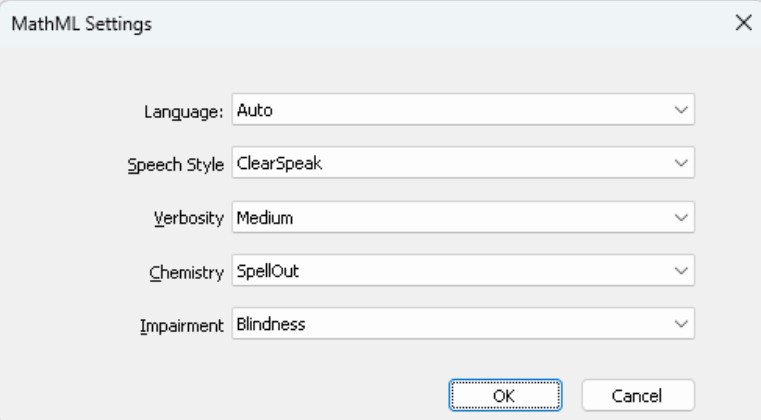
To explore the available options and set your default preferences:
- Open the SuperNova Control Panel
- Go to the “General” menu (ALT + G)
- Select “Web Settings”
- Choose “MathML Settings” to customise your experience
Key options include Language, Speech Style, Verbosity, and Chemistry, allowing you to control how mathematical content is spoken and navigated.
Please note: This feature is available in Chrome and Microsoft Edge browsers.
To learn more about MathML, visit: https://www.w3.org/Math/
Faster, more responsive character echo
From version 25.03, speech is noticeably faster and more responsive than ever before with the Vocalizer and Orpheus synthesisers - keeping up effortlessly as you type.
Now speech keeps pace with your input, helping you stay focused and productive.
You will hear content instantly as you type, for more accurate notetaking, writing and communications.
Uninterrupted Audio with Bluetooth Headsets
SuperNova now includes a new “Keep audio alive” option designed to deliver a more reliable and consistent experience when using Bluetooth headsets. This setting helps maintain stable audio performance and reduces errors which may have been experienced after the Bluetooth device wakes from sleep mode.
To enable this setting:
- Open the SuperNova Control Panel.
- Open the “Speech” menu (ALT + S).
- Select “Advanced Options”.
- Open the “Audio” page.
- Select the “Keep audio alive” checkbox.
This option ensures Bluetooth communication stays open. Please note that this will increase your device’s battery usage.
Truefont magnification for 32-Bit Microsoft Office
Truefonts support has been extended to the current 32-Bit releases of Microsoft Office, plus those editions currently available on the Preview Channel. This enables users running 32-Bit Microsoft Office to have the same high-quality, sharp magnification experienced by users of 64-Bit Microsoft Office.
For the latest news on tested and verified Microsoft Office versions, please see the following Knowledge Base article: Which version of Microsoft Office supports SuperNova’s TrueFonts feature.
Additional Improvements and Fixes
- FIX: Google Chrome – Magnification now tracks the address bar cursor correctly in all situations e.g. when using Magnifier profile.
- FIX: Microsoft Word – You can now successfully use Item Finder (CAPS LOCK + TAB) in Word documents that contain Comments with no effect on the responsiveness of the speech.
- FIX: System Settings – Performance and reliability are improved when reviewing Windows Settings.
- FIX: EasyReader App – Improvements to your accessible reading experience when using the latest EasyReader for Windows with SuperNova.
- FIX: Magnification - Improvements to magnified image to remove image 'ghosting' on 4K monitors.
- FIX: Speech - Focus is now correctly tracked and announced when a maximised window is open in the background.
- FIX: Polish Language version – magnification size list now displays correct information.
- FIX: Shortcut Key Assignment – SuperNova now applies updates to its launch shortcut more reliably, ensuring a more consistent experience when starting the product. You can customise this shortcut key at any time via the SuperNova Control Panel (General menu > Control Panel Settings). This is especially useful if the default hotkey conflicts with another application you use.
-
FIX: SuperNova Control Panel – You can now accurately change the speed value with the Voice Preferences Speed spin control.
-
FIX: Vocalizer Expressive – The Vocalizer Expressive UK and US English dictionaries have now been updated. This ensures the reading of the letter ‘P’ is spoken correctly when it’s followed by a number, rather than reporting it as ‘page’. For example, “P6” is now read as such, instead of being read as “page 6”.
Updating to SuperNova and Dolphin ScreenReader 25.03
Existing customers with a valid Software Maintenance Agreement SMA or SuperNova Upgrade Plan SUP will receive a message when they start up SuperNova to notify them when the 25.03 update is available.
If you do not have a current SMA, or you are running SuperNova 24 or before, we recommend you upgrade your licence and purchase an SMA for the best accessibility experience.
To upgrade to version 25, please contact the Dolphin office if you're in the UK. If you are based outside the UK, please contact your local Dolphin Dealer.