 United States

Empower Your Students to Read and Learn
Accessible Reading for SEND Learners
With EasyReader Education, reading is accessible for every student with additional reading needs and print disabilities, including dyslexia and vision impairment. Students log into the app and use the accessible reading features:
- Download books and other titles from accessible library services
- Read on any device - at school and at home, or on the move
- Customise with preferred text size, fonts, colours and line spacing
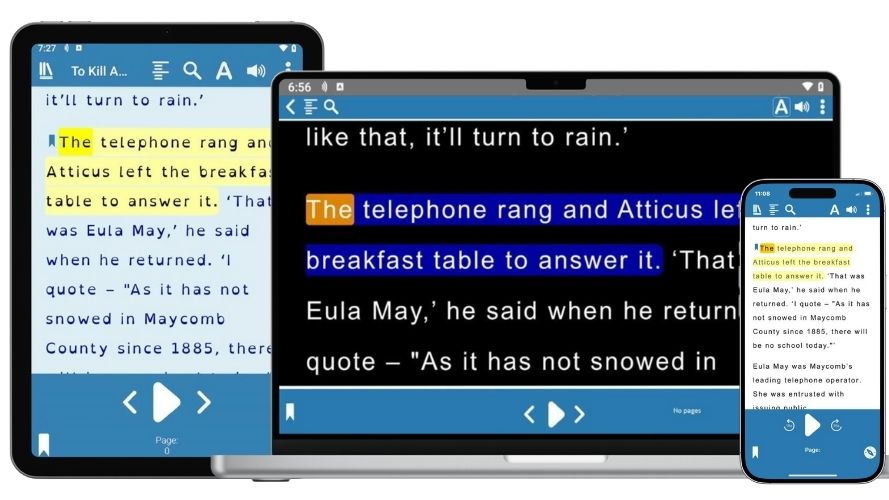
- Read with audio and Text to Speech (TTS) - choose any voice and adjust the reading speed
- Read along to audio, with words highlighted on screen
- Reduce on-screen distractions, using full screen or 'lines visible’ to focus on 1, 3 or 5 lines at a time
- Explore text by skipping to a heading, adding bookmarks and notes, or searching for a keyword in the book
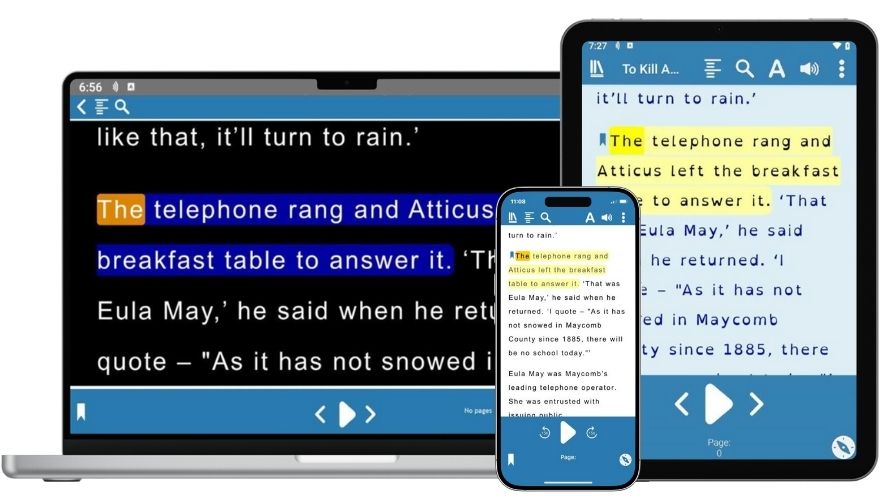
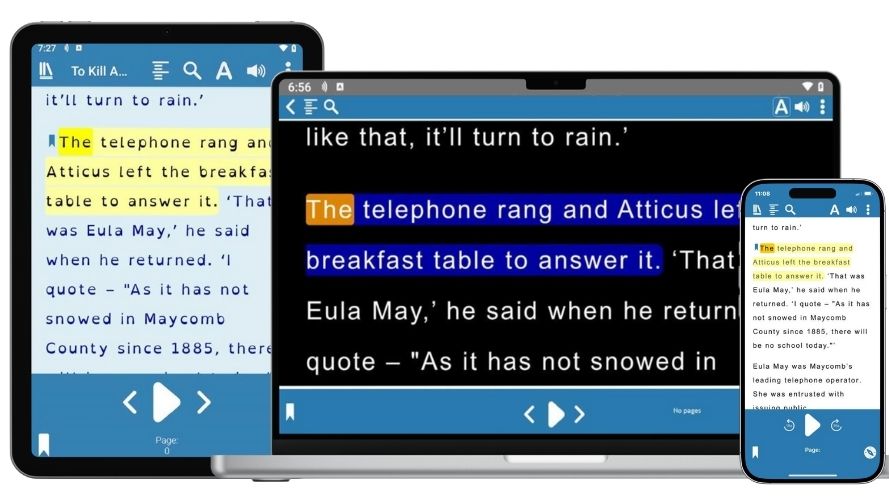
Read on any device at the point of need
Providing reading material in accessible formats at the point of need, EasyReader Education gives your students access to exclusive premium features. Their personalised reading experience is synchronised across all their devices - whether they're reading at school, at home or on the bus - so they can access:
- Saved reader preferences
- Library logins
- Bookmarks and notes
- Clipboard texts
- Voice pronunciations
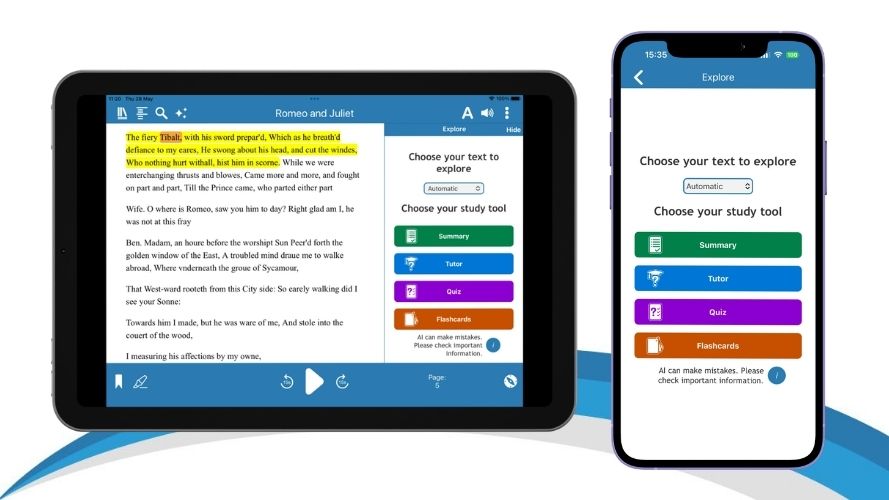
New Explore Tools for Study & Revision
Unlock Powerful New Learning Tools
Exclusive new Explore tools in EasyReader Education open up exciting learning opportunities for young people with special educational needs and disabilities (SEND).
These new AI-powered study and revision tools empower SEND students to achieve their academic goals, enabling them to study and revise independently. They strengthen understanding, deepen comprehension and improve revision practices, to ultimately improve exam results.
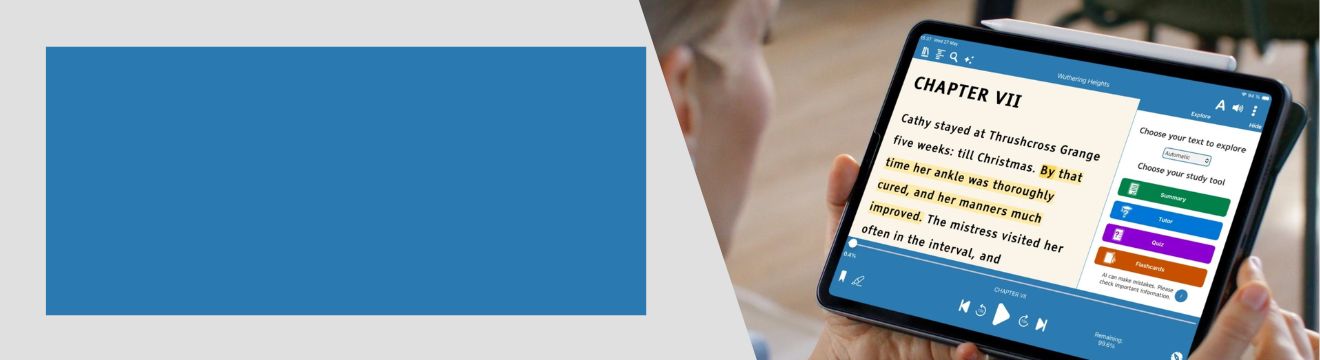
Summary - Accelerates understanding
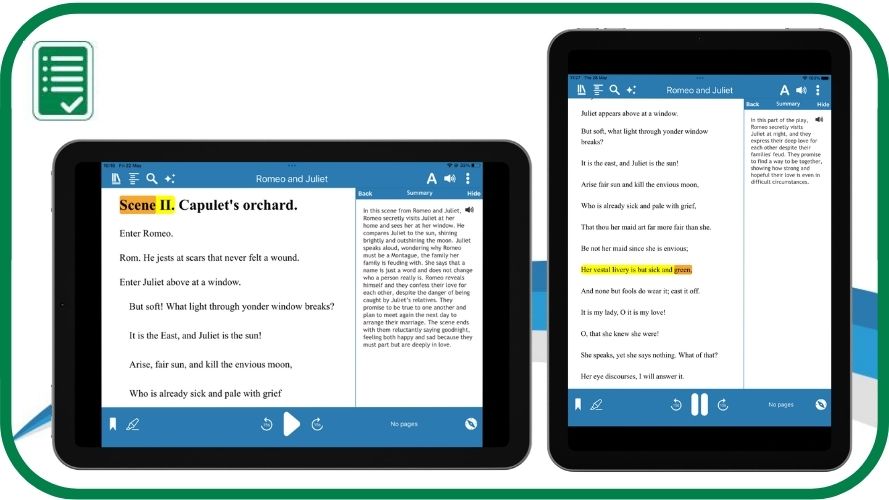
Break down the decoding barrier and accelerate understanding of the text with the new Summary feature. In just two taps, SEND students instantly generate a clear summary of a chapter or selected text.
With a choice of Brief, Standard or Detailed summaries, students control the depth of support, from quick overviews to fuller explanations which they can read visually or with audio.
In EasyReader Education, summarisation happens instantly, at the point of need. Students quickly grasp key ideas and are able to comprehend the content independently, which boosts confidence in class.
Tutor - Deeper thinking on demand
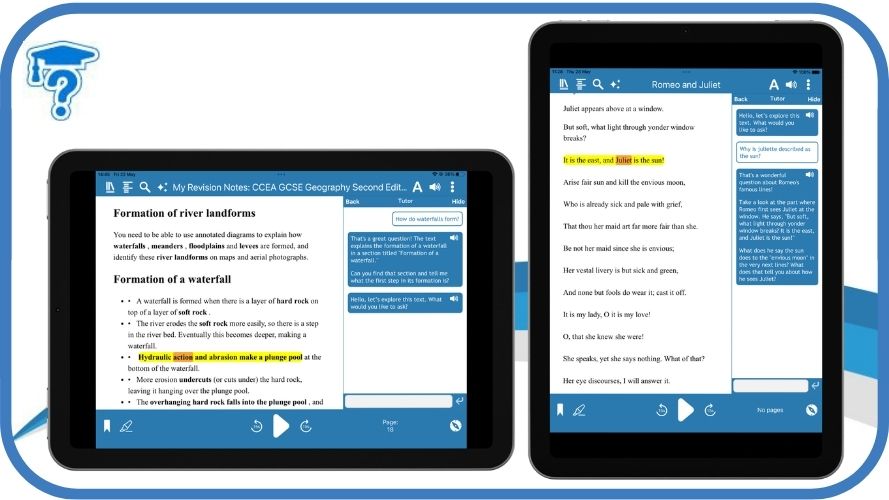
Students type questions in the app about the text they are reading, for instant, guided support that builds understanding without giving direct answers. The AI Tutor encourages learners to revisit the text, think more deeply and explore ideas further.
EasyReader Education Tutor strengthens the learning process, prompting students to reflect, investigate and connect concepts for themselves. This supports stronger comprehension and keeps learning active and engaging, helping SEND students develop independence and confidence in their learning.
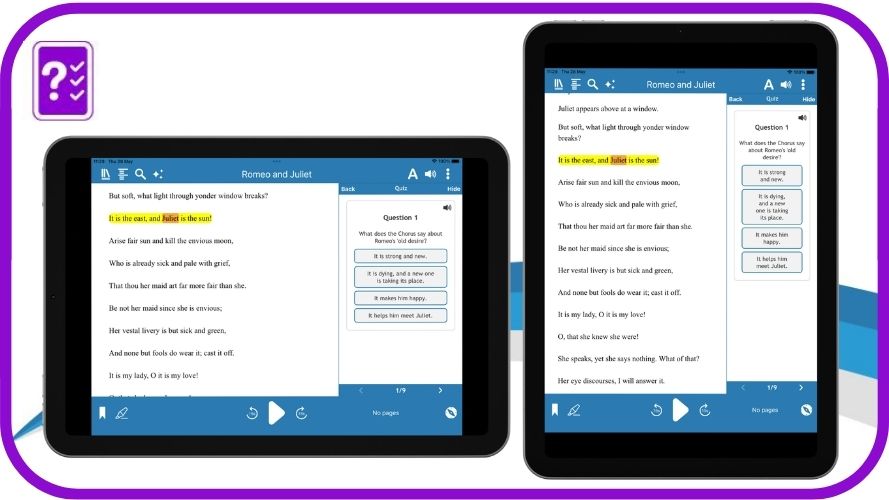
Quiz - Builds revision confidence
Instantly generating multiple-choice questions based on the selected text, Quizzes offer SEND students a quick way to test what they know and what they need to revisit. It strengthens recall, supports comprehension and reduces last-minute revision pressure.
Feedback is immediate, positive and purposeful:
- With correct answers: students see why it’s right, with added detail given to extend their knowledge.
- When answer is incorrect: it guides readers back to the text, encouraging them to revisit and deepen their understanding.
Quick Quizzes provide structured, supportive practice that keeps effort manageable and grows confidence ready for assessments.
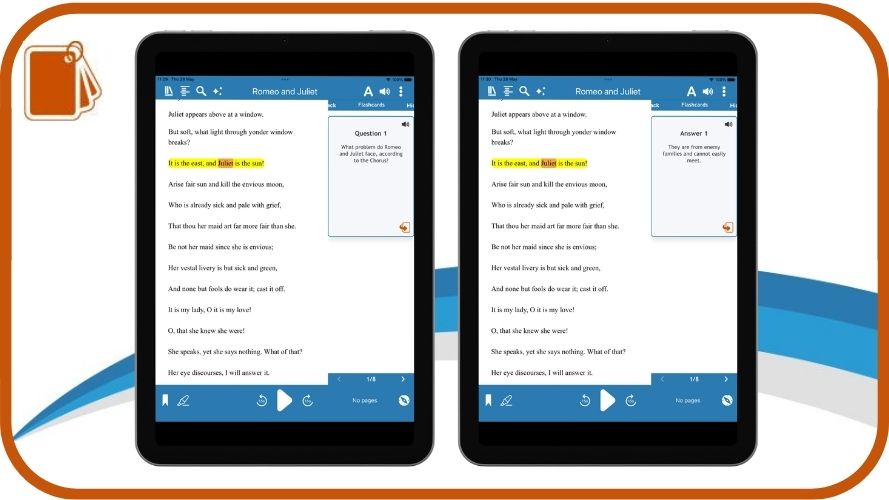
Flashcards - Knowledge that sticks
SEND students can now harness the power of active recall and spaced practice in their revision.
Flashcards in EasyReader match how students actually revise: short bursts, repeated often, focusing on what matters most.
With EasyReader Education, Flashcards sit next to the text, so students move straight from accessible reading to retrieval in a couple of taps.
This reduces overload, strengthens memory and improves long-term retention as they go. Supporting greater independence and confidence so they're exam ready!
Empower Every Learner
Access Detailed Image Descriptions
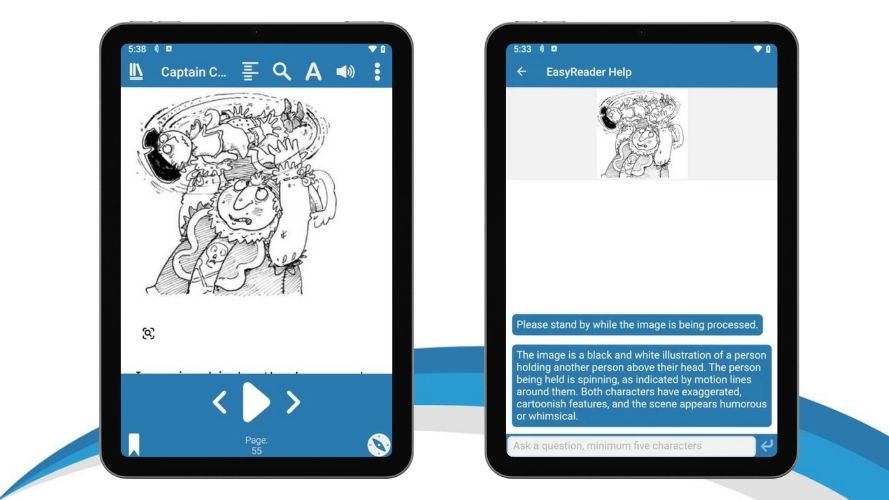
To support learning when visual media is displayed in the title you're reading, vision impaired readers can now retrieve highly detailed, AI-generated descriptions of images in books and documents in a single tap.
Tap on an image in any book you're reading in EasyReader App and the integrated AI technology provides an instant description. This works for all images, including labelled diagrams, illustrations, charts, graphs, photographs.
If you'd like a more detailed description, simply ask more questions and it will be instantly provided.
High Quality Reading Voices
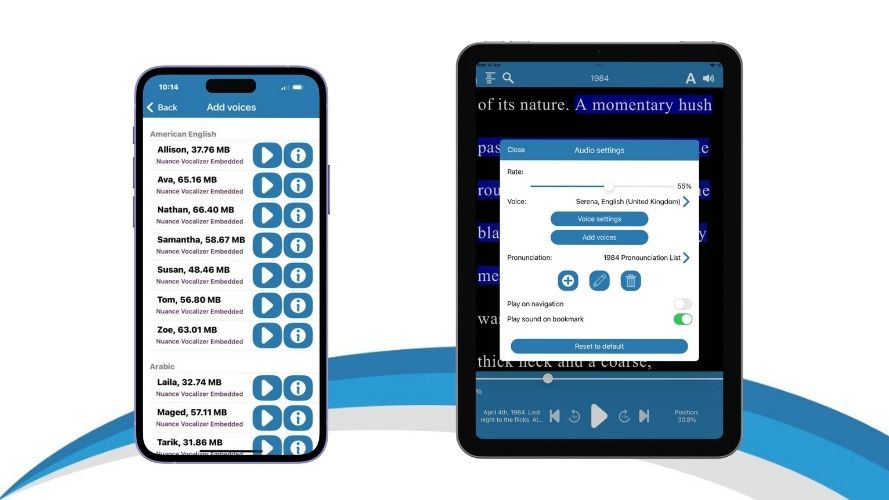
Choose from a range of high-quality, natural sounding voices when reading using Text to Speech (TTS). Different voices can be used to read different books, and these settings will be saved across all devices you log in to with your EasyReader Education account.
Voices are provided by Nuance Vocalizer and are available across multiple languages.
With EasyReader Education, the number of voices available is unlimited, so readers can choose the Text to Speech reading voice that they prefer. Play samples to help you choose the voices that work for you.
Clipboard Texts
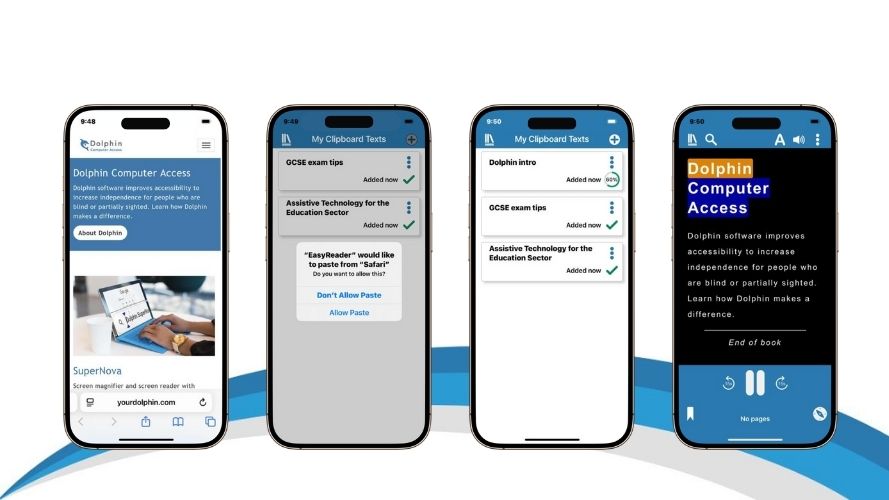
With EasyReader Education, your students can copy text from web pages, emails and documents to read independently with the accessibility settings that work for them.
The number of clipboard texts that can be copied and read with EasyReader Education is unlimited, so students can import as many clipboard texts as they need. All clipboard texts are then saved in EasyReader Education, so they can be opened on any device, at school or home, so students can pick up where they left off.
Import Classroom Files
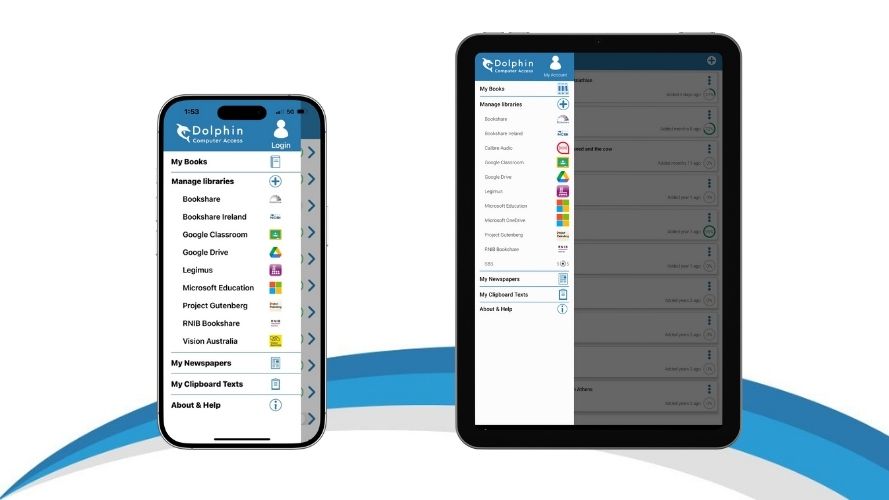
EasyReader Education allows teachers to share learning material with students through Google Classroom or Microsoft Education. File formats you can share include Word, text, ePub and text-based PDF formats.
Students can log into their EasyReader App and read the learning materials independently, using their customised accessibility settings.
Students can also import files saved to their device and use the device's clipboard to import text to read in ways that work for them.
EasyReader App for Mac
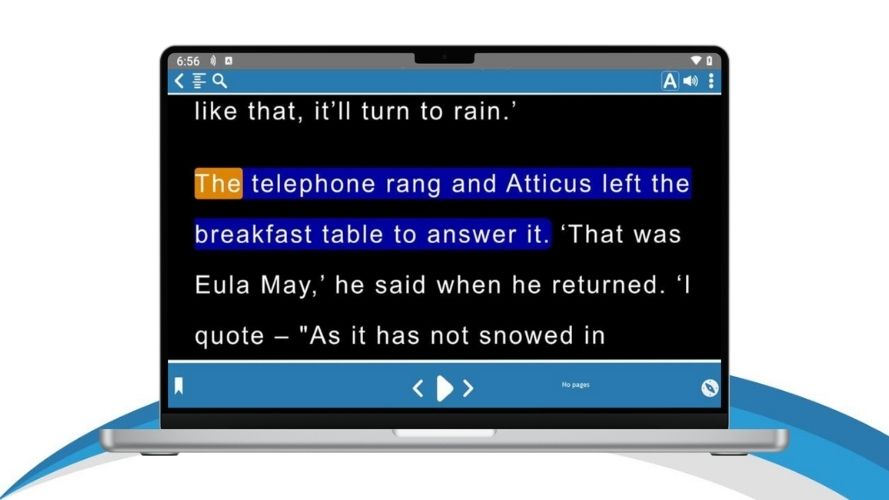
Exclusive to EasyReader Education, students with a login can sign in and use EasyReader App for Mac.
All the features of EasyReader Education are available, including:
- Their book list available across devices
- Additional file imports and clipboard texts
- High-quality reading voices
Download the EasyReader App for Mac today from the App Store.
Import files from USB
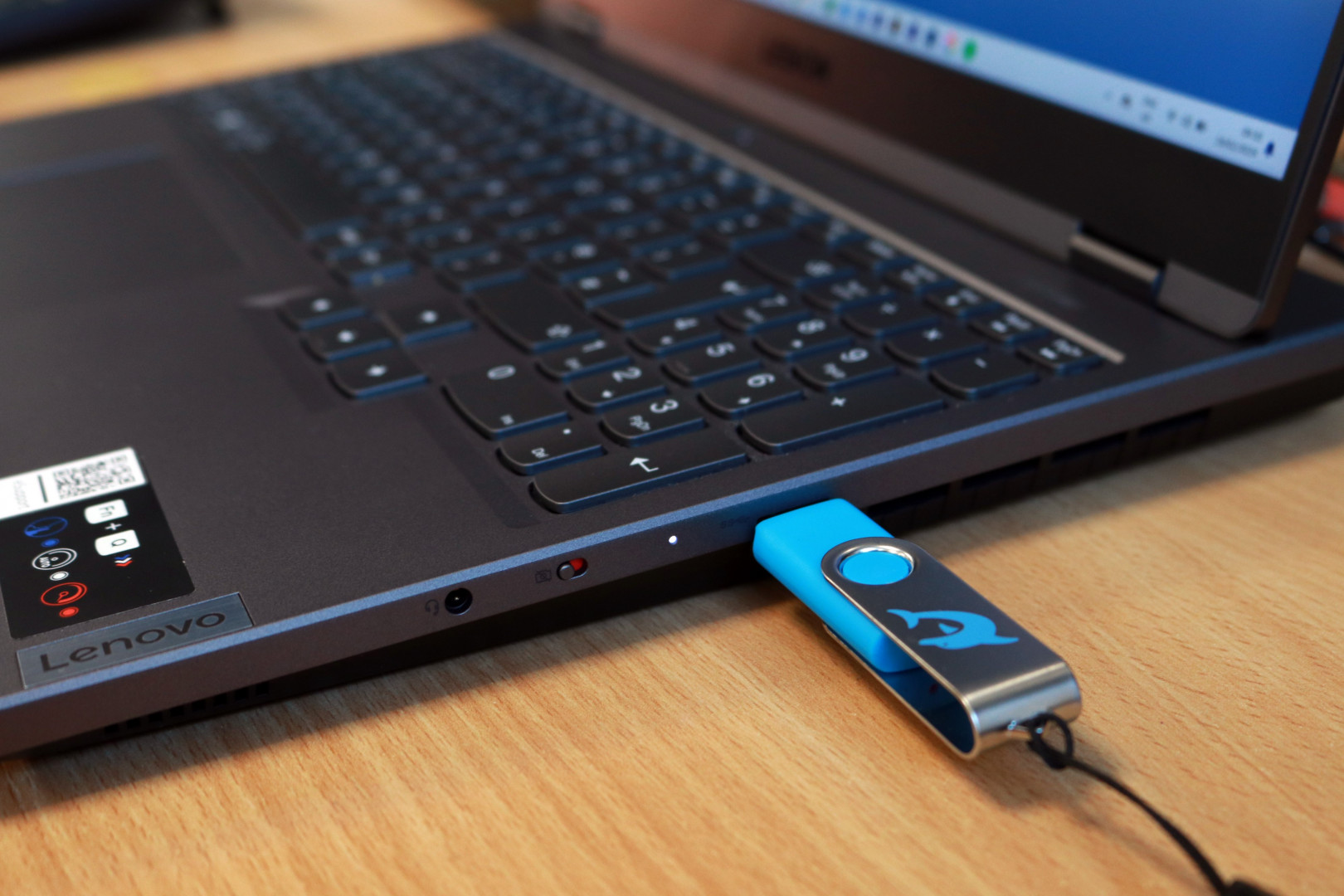
Students with EasyReader Education can import, open and read any Word, text, ePub, DAISY or text-based PDF file that they have saved to a USB drive.
This option is only available through the EasyReader App for Windows, which you can download to your classroom Windows computers.
We recommend downloading EasyReader App for Windows on all computers throughout their setting.
Import Text-based PDFs
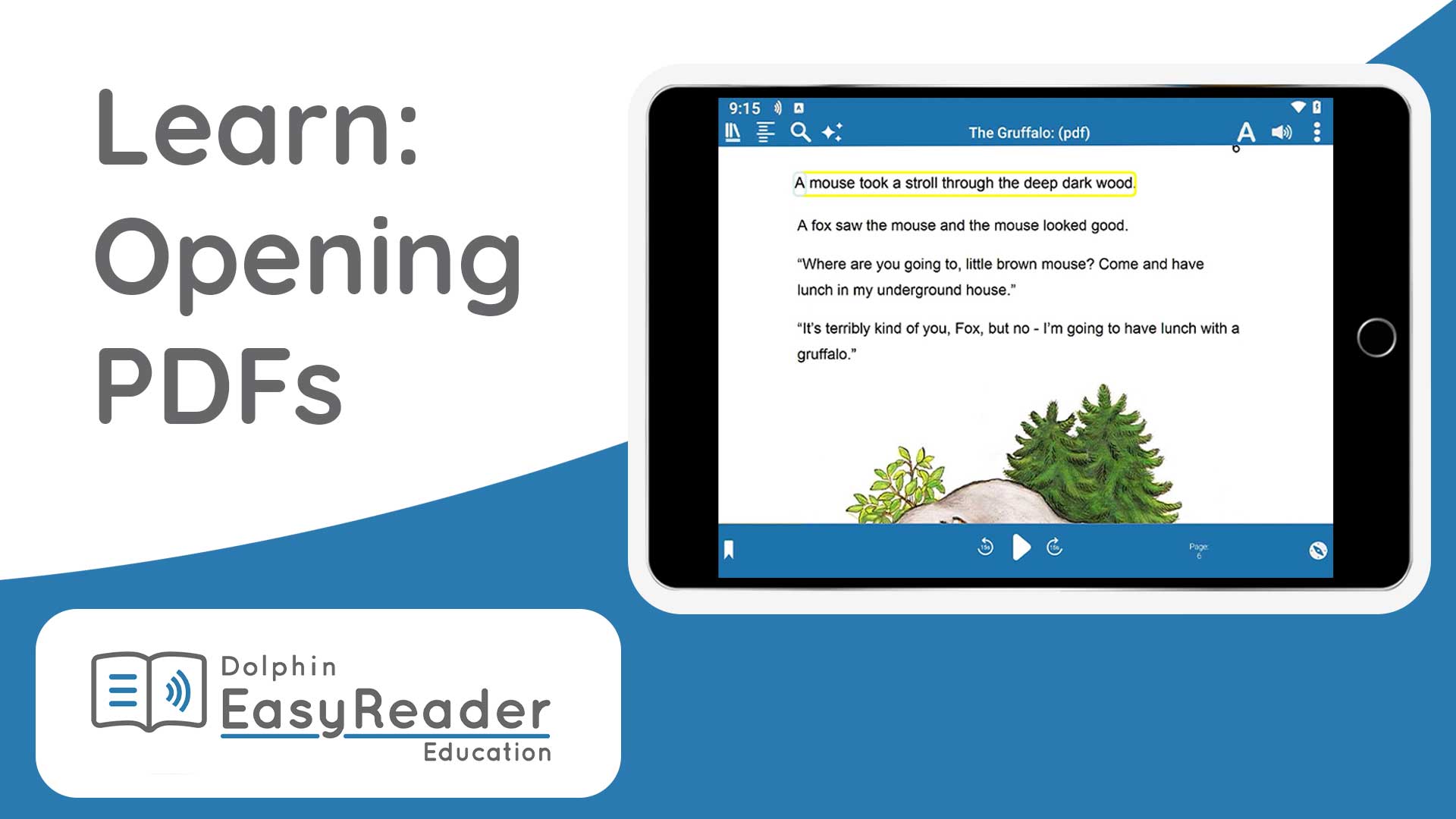
EasyReader Education makes PDF resources accessible, as they can be imported into EasyReader App.
Students can read PDFs in their original layout, or switch to text view and read with their preferred fonts and colours.
Supporting Teachers to Embed Accessible Reading
Features for Teachers
EasyReader Education includes additional premium features to provide teaching staff with a range of ways to support students with print impairments. Teachers can:
- Set up the whole school with EasyReader Education
- Empower students with print impairments to read independently
- Invite teaching colleagues to use EasyReader Education
- Access CPD-accredited training
- Share learning resources with students using Google Classroom
- Create reading lists for year groups and classes
- Monitor students' reading engagement
- Make EasyReader App available on all school computers

Logins for all eligible students
EasyReader Education provides logins for all students and staff, so you can make reading accessible throughout your setting.
Register your school email domain when you set up EasyReader Education for your setting, and download EasyReader App to school devices.
Encourage students and parents to download EasyReader App to their own devices at home, and empower them to read independently, wherever they choose to read.
It's safe, secure and ensures they can carry on reading in ways that work for them, wherever they choose to read.
Invite Teachers
Invite colleagues to your school's EasyReader Education through your Teacher Dashboard, to enable them to manage the young people with additional reading requirements in their class.
When you invite a teacher, they receive an email with instructions to create a Dolphin Account and access EasyReader Education.
Once a teacher joins, they can:
- Create logins for the young people they are supporting and teaching
- View insights into reading engagement
- Create reading lists for their classes and groups
- Access CPD-accredited training and product support

Share Learning Resources with Students
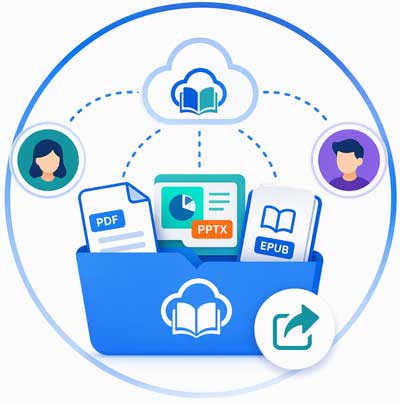
There are multiple ways for teachers to share learning resources with students.
- Create Reading Lists
Use the Bookshare or RNIB Bookshare website to create a reading list for groups of students.
- Google Classroom and Microsoft Education
EasyReader will list any files added as 'Material' in Google Classroom or 'Assignments' in Microsoft Education.
- Share directly with students
Students can import Word, text, ePub or text-based PDF saved on their device. This includes any files saved from a Virtual Learning Environment, email or downloaded from a website.
Monitor Reading Engagement
Use the EasyReader Education Teacher Dashboard to view insights into the reading activity of your students. You can monitor:
- A list of the titles each student is reading
- When each title was last opened
- The current reading position
- Time spent reading
These insights help teachers reinforce support for students who are becoming more engaged with reading, and provide the support each student needs to succeed.


CPD-accredited Training and Technical Support
Online Learning
Upskill your team to confidently support students with accessible reading with our CPD-accredited Learning Zone courses.
Technical Support
Schools with EasyReader Education benefit from Support with the Dolphin team of accessibility experts. Contact the Dolphin Support Team if you need help with technical queries.
Library Mode
To embed accessible reading in your setting, we recommend installing EasyReader App for Windows on all computers in your school, college or university library.
Please share the EasyReader Network Installer link with your IT team, so they can make EasyReader App for Windows available on your computer network. Guidance and information will be provided with the installer, and Technical Support is available.
Your IT team can enable Library Mode to clear all of the books and library logins when the students signs out of the computer.
Guidance for Library Mode is available in the Dolphin Knowledge Base.
Take 30-Day Trial
Try EasyReader Education Today
Take the 30 day trial and discover how to make independent reading and learning possible for your SEND learners. You'll experience:
- Accessible reading for every SEND learner
- Independent reading on any device, at the point of need
- Empowering independence and achievement
- Powerful revision tools to improve exam results
- CPD-accredited training and support
- Teacher insights without extra workload